

Its very easy using the Filter feature of SharePoint views to show only items completed in the last 30 days or items due in the next X days; for example :-
Completed >= [Today]-30
On the Advanced SharePoint View and Filter techniques post Ed asked how you could filter for the current calendar month rather than a rolling 30 day period (for example all tasks due this calendar month).
Like all great questions it seemed simple enough – something like only showing items where the Month and Year of the due date = the Month and Year of the current date.
Alas, we can’t use [Today] in calculated columns and we can’t use functions like Month([Due Date]) in the filter – so this approach will not work.
The solution is to turn this on its head – its a bit weird, so bear with me!
We need to have two calculated fields, one showing the first day of the month that the due date is in and one showing the last day of the month that the due date is in.
We can then use the filter to show only records where
[Today] >= First Day Of Month
AND
[Today] <= Last Day Of Month
So looking at this in graphical form we have :-

Timeline
- In this diagram the current date is 15th Nov (the orange dotted line).
- Task 1 & 2 should be shown if the current date [Today] is in between the first and the last day of November (the blue line)
- Task 3 will not be shown until [Today] is between the first and the last day of December (the blue line)
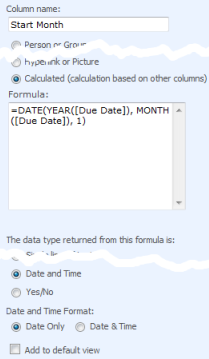 |
To put this into SharePoint open your list, click Settings > List settings > Create Column and setup the following two columns.
=DATE(YEAR([Due Date]), MONTH([Due Date]), 1)
    =DATE(YEAR([Due Date]), MONTH([Due Date])+1,1)-1

    (Which is the first day of next month - 1)
|
View a few records to check the formula is working OK and you see the correct dates.
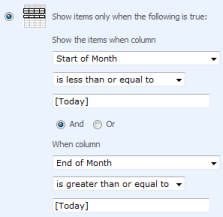 |
Now create a new view, call it something like “Due This Month” and setup the filter for
Start of Month is less than or equal to [Today] AND End of Month is greater than or equal to [Today] |
Further tips
You can use this with date fields other than [Due Date] – e.g. [Created] for items created in the current month, [Modified] for items well… urm… modified in the current month!
Using the same technique you can also use the following formula
The current week (Sunday to Saturday inclusive)
 Start Week =[Due Date] - WEEKDAY([Due Date]) +1
 End Week   =[Due Date] +7 - WEEKDAY([Due Date])
(For other definitions of the a week see this post)
The previous month
 Start Month =DATE(YEAR([Due Date]), MONTH([Due Date])+1, 1)
 End Month   =DATE(YEAR([Due Date]), MONTH([Due Date])+2,1)-1
The next month
 Start Month =DATE(YEAR([Due Date]), MONTH([Due Date])-1, 1)
 End Month   =DATE(YEAR([Due Date]), MONTH([Due Date]),1)-1
The current year
 Start Year =DATE(YEAR([Due Date]),1,1)
 End Year   =DATE(YEAR([Due Date]),12,31)
Edit
I should make clear that this technique will not work correctly on Event lists with recurring event as SharePoint only records the start time of the first event, not each occurrence in the series.
References
Tags: Calculated Columns, Filter, Tip, View


[…] This post was mentioned on Twitter by Veronique Palmer, Sandip. Sandip said: Nice article on filtering #SharePoint calendars OOB from Pentalogic http://bit.ly/66tD3U […]
The calculated columns mentioned above are only good for one day. Tomorrow, if nothing has changed in the underlying list item (i.e., an Update has not occurred) the calculated column is inaccurate because it is not automatically recalculated. This is a major weakness of SharePoint – the calculated columns are “static” (until somebody makes a change to the underlying list item) instead of “dynamic” (recalculated each time they are ACCESSED, regardless of whether the underlying list item has been updated). An admittedly awkward solution is to define a workflow that runs every day just after midnight that issues a System.Update() call on ever single list item in any list that has these types of calculated columns to force those columns to recalculate with the new value of [Today]. The real need is for two types of Calculated columns: Static (calculated once until list item is updated) and Dynamic (real-time calculation based on currrent Date/Time substituted for [Today]).
Hi Fred,
I think you have misread the article a little. You are absolutely correct about the [Today] trick in calculated columns not updating and its something I’ve blogged about before /2008/11/truth-about-using-today-in-calculated-columns/
However – the post above does not use this trick, and the calculations such as “=DATE(YEAR([Due Date]), MONTH([Due Date]), 1)” do not change with the current date, only when the list items [Due Date] changes.
Also you can use Today in filters – this is evaluated each time the fitter is ran.
Follow the walkthrough and I’ll guarantee it works, $100 to the charity of your choice if I am being a muppet!
The linked post would work even better if it used a content type with “hidden” calculated columns to calculate FirstShowDate and LastShowDate values and then filter for FirstShowDate[Today]
Hi John – its a good idea for some circumstances (and I’ve taken the liberty of copying your comment to the main article) but not something that I wanted to put in the post because :-
a) The main ‘take away’ point of the article is how to turn the problem on its head so you can work around the limitations of calculated columns and filters – the use of content types/site columns might hide this point under extra complexity
b) You can’t do this (AFAIK) using the normal web interface so its not suitable for ‘end users’
Having said that, for someone setting up a list template or similar and wanting to give it views like “Due this week” “Due this month” etc then your idea is perfect.
Thank for the comment.
great stuff!
thanks for this info. it really helped me a lot. however, i would like to ask what if i would like to filter only those item that was created last month? say today is 12/03/2009, and i would like to show only those item created between 11/01/2009 and 11/30/2009. I tried the one specified under previous months, but the filter returned me nothing. please i really need your advice. thanks in advance!
@JMB I would check the following :-
1) Did you change [Due Date] to [Created] in the formula?
2) Check a few list items – are the start/end of month dates being worked out correctly? If not the problem is in your formula, if so then the problem is in the Filter.
If you’re still struggling with this then send me a few screnshots showing your list, the formula and the filter portion of your view and I’ll do what I can.
http://www.pentalogic.net/about-us/contact-us.aspx
Hi Ryan,
Thanks for the reply Ryan. First, I have followed each steps you specified correctly. The formula is perfect.
But I think, I have used the wrong term “created”. Let me state my requirements:
1. I have a custom list where I will put all items that was reported a month ago.
2. I have included the custom field [Date Reported] whose value is equal to the date when the items were actually being reported. This is not necessarily the same date as it was added on the list.
Ex. Item A was reported last 11/15/2009, but I have included it on the Sharepoint list today 12/06/2009, the [Date Reported] column should have a value of 11/15/2009 rather than 12/06/2009.
3. I need to created a filter where I can view all the items whose [Date Reported] value were within a month ago. In case of the example above, I want to view all of the items for the month of November only. In this case, Item A should be included on the return value of the filter.
I hope you could help me on this. The formula to get the value of start and end of previous month is ok. But I’m just at a lost on how to do the filter when the comparison to use is a custom field rather than the keyword [Today].
@JMB – You might need to read through the example again as I think you misunderstood the key part. Also – are you wanting to show things reported in the last 30 rolling days within the previous calendar month?
The calculated columns are responsible for working out the start and the end of the month in which you want to display the item, and the filter applies, well the filter.
So in the column formulas you would use [Date Reported] instead of [Due Date] however in the filters you always use [Today] which is a tag for Todays date.
This might be easier to sort out on email so get in touch on the contact us link above.
Nice blog Ryan. Thanks for posting this, it was very helpful.
Hi Ryan,
I have sent you and email regarding the details of my problem on previous month filtering. Your help is badly needed. Thanks in advance!!!
Awesome! Just what I was looking for!
Hi Ryan!!!
Thank you for the awesome instruction you have shared! I already got the results I am expecting based on your reply to your email! You’re the best!!!
Hi Ryan, When I setup the Start of Month column I get the following generic error message:
Error
The formula contains reference(s) to field(s).
Troubleshoot issues with Windows SharePoint Services.
Any idea’s????? Thanks!
@Jeanna – Haha, SharePoints famously helpful error messages!
I think you’re getting that error because you are trying to put the formula in the Default Value of a column, rather than create a calculated column.
A default value is… erm… the default value given to a field when a new record is created but can be overwritten. In effect what you’re asking it to do is work out a value based on another value that hasn’t been entered at the time the “Add New” button is clicked and the formula calculation ran.
Have a look at the middle picture above and check you’ve got the right options selected (Calculated, Date and Time etc) and the formula in the right area. If you’re still having trouble can you send a screenshot to me? http://www.pentalogic.net/about/contact-us
Yes, the error messages are so not helpful! Thanks so much, I was putting it in the wrong place – DOH!
Hi Ryan, Great post! I ran into an interesting related problem. I used this post to impress my boss, then she asked if I could create a view that shows items due in each fiscal quarter. My first idea was to create 8 calculate columns, a start and end for each quarter: “Start of Q1”, “End of Q1”, “Start of Q2”, “End of Q2”, etc. Then create a view for each quarter: “Due in Q1”, “Due in Q2”, etc.
The problem is that our fiscal Q1 goes from November 1 to January 31, so it spans one year to the next. For all other quarters I think it’s simple. For example, Q2 (Feb 1 to April 30) would be:
Start of Q2: =DATE(YEAR([Due Date]),2,1)
End of Q2: =DATE(YEAR([Due Date]),4,30)
But for Q1, I’m not sure what do do with the YEAR in the calculation because the year you are viewing it might be different than the year it’s due, but it’s still in the same quarter. For example, if I was looking at the view in Nov/Dec 2009 I would see tasks due in Jan 2009 rather than Jan 2010; and if I was looking at the view in Jan 2010 I would see tasks due in Nov/Dec 2010 rather than Nov/Dec 2009. Any idea how to modify the calculation for Q1?
Going further than this, how would you approach this if you just wanted one general view called “Due this Quarter”? How would you filter the view? Would you need additional calculated columns?
Ryan,
I would like to know if there is a way to display only months at the top of the Gantt chart, I am new to this part of SharePoint I am using the jquery slider code and have tried with and without calculated columns, any help you or the other users would be great.
Thank you for your time…
Robert
@Josh – Interesting question, I’ll have to give it some thought.
@Robert – Christophe is the expert on using Javascript to modify the behaviour of the OOTB Gantt chart.
Alternatively there are some 3rd party web parts (blatant plug time!) that give you much more flexibility over the built in Gantt Chart such as Planner for SharePoint.
Ryan,
I have been away for some time but coming back to the office and seeing your response really made me happy! 😉
I had no problems following your instructions to set things up, and I am no pro at this whole sharepoint stuff so you must take this as a real compliment.
Regards,
Ed.
Hey Ryan! This has been a big help and after reading this and some of your other posts I am still left with one question.
My list does not have a “due date” or anything. All I want to do is in any given month, see only documents in the list that were created that month. I understand the calculated fields dont update themselves. But what is a good way to make this happen? If I have overlooked the solution on any of your pages I aplogize, but please point it out to me.
Thanks in advance!
@Domenic – every list in SharePoint has a Created and Modified field that contains the date/time when the record was created and last modified. So for your use instead of using “Due Date” you can use “Created” to get a list of all items created in the calendar month.
Ryan,
That is what I did from the start, however, now I face the issue of everyday when I create a new document it wont show up. I pretty much have to go to the settings page and go into the settings for both “First Day” and “Last Day” columns and click OK. Basicly to “refresh” the colums. This obviously is not practical but I do not know how to fix this.
Any ideas?
And again, I apologize if this is already covered somewhere and I have overlooked it.
@Domenic – It works fine when I’ve done a quick test here. Get in touch (Contact Us on main website) with some screenshots and I’ll see if I can figure out whats going wrong.
Ryan,
Real quick, forgot to mention this fact. I am not using this on a list, I am using it in a form library. Trying to show submitted forms for “current month” only.
@Domenic – that doesn’t matter as its still a list underneath.
From your comments re: “modifying the settings” its sounds like you may be mixing in the calculated column ‘Today’ trick (which doesn’t work) up with this method so please re-read the post step by step to see if its anything obvious. If not then send over some screenshots of your list data/calculated field formula/view filters etc and I’ll see what I can do.
sent screen shots to support email with your name in subject line.
Ryan,
Great stuff and easy to follow. How about if I only have mm/dd in my field? I’m trying to be sensitive and not ask for the yyyy portion for birthdays. And like this example I only want to show those birthdays in the current month.
Thanks!
Hi there
Does anyone know any easier way for me to be able to group an Actions Log by Modified Date (but have it grouped as below rather than by each date?):
-Today
-Yesterday
-The Week
-Last Week
-This Month
-Last Month
-Older
Would appreciate the help!
Stephen
Thanks for these tips. I used it today to create a calndar month view of contributions to a discussion board. Very easy to follow for a non-techie.
James.
Hi Ryan, thank you very much for this post, saved my day!
Hey, are your formulas for previous month and next month backwards? It’s been awhile since I’ve done any coding, but from looking at them, they look like one is caluclating the other. I’ll try to test them out on my site as I need them, but from first look…
Also, I want to do the previous month and next month feature, but I don’t see how [Today] can be used in the view. I can try to add or subtract 30 but since the months always change, there will be a chance that it doesn’t come out right (like on the 31st of a month). How do I make sure that my view shows only those tasks labled with last months date? In the current month, I get the more than and less than feature. However, next month would both require more than [Today] but that also includes the month after that. The same is true for previous month. Thanks for your insight.
Doh…I think my last post just explained why your formula is correct as mentioned. Since we are comparing the answer to [Today], they previous month has to add a month and the next month has to subtract a month to make it work. Sorry for my above posts..
@Robert – no problem, having to attack this problem backwards makes it a bit of a mind bender at first!
Hi
I want to show items which are after 2 hours to present time in a list view. Please let me know as this includes working against TIME too where the TODAY cannot be used for TIME calculations.
Or let me know how to get the current time through any calculated column.
Regards,
Kiran
Hi,
Firstly, thanks for your blog, I think it’s great. I’m struggling with one part though – maybe I can describe and I’m sure you can point out where i’m going wrong.
I want to display all items in the list which will be overdue by the end of the month. So, that includes items which are overdue from previous months. I’ve created an “End of Month” column for each entry.
I created a filter for where “End of Month” is greater than today. But this brings back all future months. So, I changed the filter to be “End Of Month” is greater than [Today]+31. But I think there will be a few days in the year (mostly around month end) where our users will get the wrong data. As most of our users tend to leave everything until month end to sort out, it’s probably not okay to leave it like that.
What do you suggest? I want to show all the items which will be overdue by the end of this month, but also include those from previous months too. Its probably really simple.
Thanks again, think your blog is ace.
I’ve been using this trick for some time (thank you very much for this) and I noticed something odd today. For no apparent reason, when I went into my filtered list today (the 31st of August) it was only showing my own cases. I thought this seemed rather odd…like the permissions had been change or somehow a filter showing only my stuff had slipped in.
After further investigation, I decided to show the FirstDay and LastDay columns. For some inexplicable reasons, the dates were messed up for everyone but me. A couple other people were showing 7/31/2010 as the first day and 8/30/2010 as the last day of the month. Furthermore, when I looked further down the list, in the middle of July, one person’s dates went from being correct (7/1-7/31) to wrong (6/30-7/30). I tried what Domenic here had done and went into the First and LastDay columns and just hit okay, lo and behold, everything fixed itself right up.
Is this some weird bug, or is there something I should be watching for? I’ve been using this for 2 months or so now so I’m not entirely sure if it’s always done that or not.
Exactly what I needed. Now I no longer need to manually redefine my \Current Month\ view every month. Thank you SO MUCH!
You just saved Christmas, Ryan…I fought with this issue several months ago and just now got back around to dealing with it again. Problem solved!!!
Whatever happened to Fred Morrison, anyway?
Anyway, thanks a lot!
@RJ – I am no santa, well maybe a Bad Santa but thanks!
Fred – never heard back from him so I’ve still got my $100 😉
This works perfect! thanks for taking the time to write this 🙂
Hello,
I’m fairly new to SP 2010 so please forgive me for this post. I found your post regarding items shown in Current Month so useful and have used it on one of my sites but now I need to create another list which shows items created in current week. I tried to use this:
StartWeek =[Proposal Date] – WEEKDAY([Proposal Date]) +1
EndWeek =[Proposal Date] +7 – WEEKDAY([Proposal Date])
and in the list filter I have:
StartWeek is less than or equal to [Today]
EndWeek is greater than or equal to [Today]
I feel I have something wrong in the filter as I am only seeing items with todays date in the Proposal Date field and if I create something in advance for 18/Feb/11 it doesn’t display. Any ideas?
Many thanks in advance.
Hayley
here is my Previous Month which allows for a yes no response for filtering currently based on the Created date. Inspired by this page.
=IF(AND([Created]=DATE(YEAR([Today]),MONTH([Today])-1,1)),”Yes”,”No”)
Opps, Pasted wrong one.
=IF(AND(Created=DATE(YEAR(Today),MONTH(Today)-1,1)),”Yes”,”No”)
Hi All,
I tried adding 2 columns Start_Month and End_Month by replacing the Due_Date field with a field know as Incident Date (the field is a DateTime) but when I used the filter condition of [Today] in between the start month and end month I got no rows selected. The formulas I used are similar . Star Month Formula is =DATE(YEAR([Incident Date]),MONTH([Incident Date]),1) and End_Month is =DATE(YEAR([Incident Date]),MONTH([Incident Date])+1,1)-1 . Please help out . Thanks a lot in advance.
My forumla isn’t pasting correctly , sorry for any confusion. Seems that the page removes some of the code when I submit.
For a copy of the Previous Month formula email me voldoxATgmail.com
Hi Voldo ,
Can you help me too. I need to pull a monthly report from Sharepoint . Our report has a field with datetime format something like 1/1/2011 12:16 AM and I used the formula given in the blog . Pls see my previous post. Please advice where I am making a mistake in the formula.
Thanks for your help.
@Hayley – That looks right to me, so get in touch with us and send over some screenshots of your formula, view setup and values in your Proposal Date, StartWeek and EndWeek and I’ll see what I can do.
@Voldo – I am not sure that will work – are you putting that formula into a calculated column? If so then you should know that the fake ‘Today’ column trick doesn’t work.
@new_to_sharepoint – get in touch with us and send over some screenshots of your formula, view setup and values in your Incident Date, Start and End Month and I’ll see what I can do.
Doh ok, so it only works when using it on a view? Are there any 3rd party addons which allows this to work then?
getting error for showing the current month
error –> Filter value is not in supported date format
Why is it so?
@Seema – you must have made a mistake in the formula.
Thanks for this Ryan.
Now I want to create a view listing all the items of the next month (due date is between 1st day of next month and last day of next month). To set the 1st and last day is not the problem. But I cannot compare two colums in the filter settings (eg. “FirstDayOfMonth” less than or equal to “Due Date” AND “Due Date” is less than or equal to “LastDayOfMonth”. I was thinking of another column as a helper but coudnt find a solution… any idea?
@Tom – there is an example at the bottom of the post for “The next month” – the basic method is exactly the same as “This Month”
ahh, now it works. did somesthing wrong when i first tried it. Sorry. Thx anyway.
I get an error when trying to put this in my code. The error is: The formula contains reference(s) to field(s).
This is what I used,please help.
=[Sit Rep Due Date] – WEEKDAY([Sit Rep Due Date]) +1
@Shigady – Where are you trying to put this formula, in a calculated column, view filter or default value?
Ryan,
I can’t seem to get this to work. If I have an InfoPath 2007 form that is populating a custom content type and being submitted to SharePoint, does this change anything. We are using MOSS 2007. I use a date picker in my form, and this form submits to a SharePoint list. I then tried to create a calculated column to filter by the due date custom column. Unfrotunately, it returns all data and not just the data that fits the filter. Does using InfoPath date picker cause any problems within SharePoint?
Thanks,
Dan
Ryan,
I am trying to put it in a calculated column. My goal is to have forms that are submitted by users populate a SharePoint list. I then want to create a view that will only show the items for that current week based on the due date selected by the user when they submitted the form.
Thanks,
Dan
Ryan,
Thanks for your responses, I got it to work.
Ryan,
I was able to get Current Week to work, but Current Month does not return any data. I have a calculated Column labeled MonthStart and use this code: =DATE(YEAR([Sit Rep Due Date]),MONTH([Sit Rep Due Date]),1)
I then have another calculated column labeled MonthEnd and the code: =DATE(YEAR([Sit Rep Due Date]),+1,1)-1 However, SharePoint keeps dropping the + sign, so I am not sure if this has anything to do with it, so the code after I click ok is: =DATE(YEAR([Sit Rep Due Date]),1,1)-1
When I create my view and reference in the filter the two columns above, I do not get any data returned.
What am I doing wrong?
@Dan – You’ve got the formula wrong, you’ve got
=DATE(YEAR([Sit Rep Due Date]),1,1)-1
Should be
=DATE(YEAR([Sit Rep Due Date]), MONTH([Sit Rep Due Date])+1,1)-1
If you’re struggling to get these working then look at the values in the StartMonth/EndMonth columns wihtout a filter and you will be able to see where the propblems are – in your case instead of End of Month being the end of the month your formula would have shown the end of the *previous* month.
Thanks Ryan,
I knew it had to be something I did not do correctly. I could have sworn I verified it to be exact. Thanks for being my second set of eyes.
@Dan – haha, no worries, all these brackets can make your eyes go wonky (o) (O) !
Oh my god… you’re a legend! Works perfectly. 😀
Awesome post. Well put. I’ve done rolling periods dozens of times, but needed this and I couldn’t seem to wrap my head around it. Thanks!
Is there a formula to get the last 24 hours?
Thanks
Rob
Rob – not that I know off, you can’t do anything like [Now] in SharePoint, you’re limited to the date portion of a datetime field.
I get a syntax error when I tried this using SP 2010; any ideas why?
Thx
Sorry, I get this:
“Error
The formula contains reference(s) to field(s).”
I tried a simpler formula:
YEAR([Created])
and I still get the same error. Help!
@Paul – you’re putting the formula in the wrong place. You’re using a Date/Time field with the default value setting (which sets up a default value for a new record) – this can’t refer to field in the record because at the time you create a new record it doesn’t yet exist to pick values from it – hence the message.
Please ensure you create a Calculated field – set the type to Date Time and input the formula there.
Hi Ryan
I’m trying to implement this but I’m having a bit of trouble. I have a list that contains events. Some of these events can span over a few days. I have a first date and last date columns.
So im trying to have a DailyFaqs view that will show events that are between the first date and last date 06/30/11 – 07/04/11 by using [today]
hope that you can point me in the right direction
Kris – I think you just need to setup a view with a filter of
Start Date = [Today]
(in other words Today is between the start and the end date).
Does this work for you, if not can you clarify what you’re trying to do?
Hi Ryan
I’m not sure if that will work, so I will try and clarify my problem.
As I said, I have a list of events that are happening throughout the year.
I then want a view that shows “whats on” today.
The problem I am having is that when I have an event that spans more than one day.
I thought I could use your above solution to get what I want. Id like it to show the event when [today] occurs at anytime in between Date A and Date B
Opps – the formula got mangled when I put in angle brackets. You don’t need to follow the method on this page (thats for something else) you simply need a view with the following filter
Start Date is less than or equal to [Today]
End Date is greater than or equal to [Today]
(in other words show records where [Today] is between the start and the end date).
Thanks Ryan
hi ,
i want to show a calendar with yearly view.(like the day,week,month view in calendar).could you help me to get that one. and also i need a calendar with custom two dates.(from 15th august to 15 december 2011).how to get that.please help.many thanks
regards
sharath
When I enter the formula, I get this answer:
“The formula refers to a column that does not exist. Check the formula for spelling mistakes or change the non-existing column to an existing column.”
Does that mean that “Due Date” should be replaced with the name of an actual column in my list?
@Christina – yes, you need to rename “Due Date” with your column name.
Thank you, that worked! I also had the wrong code in the Month End filter, but fixed that. Now all I have to do is convince the user (enthusiastic but inexperienced) that it’s the coolest thing ever. : D
I am trying to use your method to create a view of what was completed last month. I have the calculated fields showing the month range of the completed date but for some reason cannot understand how to narrow the view down to what happened last month. Please let me know how this can be done.
Thanks
joe
@Joe – erm – the details are in the blog, I’ve no idea where you’ve gone wrong but I would suggest going through it again and double checking that a) The right dates are appearing in the start of month, end of month fields and b) you’ve got the filter in the view right.
Good luck!
Ryan
I do and have gone through it many times. The date columns are correct but the view shows everything including dates before the range but not after..another words date columns show 7/1/2011 – 8/1/2011….view will also include items from 6/x/2011 based on how you wrote this. It isnt showing what is between those dates only. I could do this filter with just the completed date.
@Joe – “have gone through it many times” – you’re missing something – sorry, no other way to say it! 😉 Take a load of screenshots of your list, the formula you’ve got in the columns, the filter your using etc and send them to us and I’ll see what I can do.
Ryan, you rock – thanks for this awesome info – so glad I googled and found this before I spent too much time trying to figure it out myself! 🙂
Ryan, thanks for the grerat post! You did a great job explaining the solution and documenting it in great detail.
I’d be curious to know if anyone has come up with a solution for filtering on recurring events.
Cheers Jorge! re:Recurring Events, not that I know off and knowing how recurring events are implemented I don’t think its going to be possible without some pretty serious code and custom web parts.
Excellent information. Exactly what I needed! Thanks!
I have used the correct filtering and calculated fields, but my previous month view shows one item from the current month. If I include the previous month start and end date fields in the view, it shows that the range should be from 10/1/2011 to 10/31/2011 and it pulls the issues from september which is great, but it includes one issue from 10/3/2011 and the start and end date range for that is not 10/1/2011 to 10/31/2011, it’s 11/1/2011 to 11/30/2011. Any clue why it would do this?
@Lauren – thats an interesting one! My first thought is are you sure that you’ve got an AND filter (Today > Start AND Today < End) or could an OR filter have sneaked in?
Filter by current quarter in sharepoint list., http://sivanesanb.blogspot.com/
I have been trying to figure out how to filter a view by past three months. I have wracked my brain, any help will be much appreciated.
Ryan,
Is it possible to use a calculated column and filter to show previous years (plural). I see how to do it for 1 previous year, but what if you wanted it to show the past 4 years?
Thanks,
Dan
@Joshua – the answer is above. You setup up a window to show the item for the next 3 calendar months. Its the same method as week/month, just with 3 rather than 1
Assuming you mean this month and last TWO calendar months then its
Start Month =DATE(YEAR([Due Date]), MONTH([Due Date]), 1)
End Month =DATE(YEAR([Due Date]), MONTH([Due Date])+3,1)-1
@Dan – are you talking about 4 calendar years (e.g. 2008,2009,2010 & 2011) or 4 years (365*4 days)
Assuming its the former then its exactly the same method as above but with a different start/end window.
Start =DATE(YEAR([Due Date]), 1, 1)
End =DATE(YEAR([Due Date])+4, 12,31)-1
@ Ryan, thanks, you are the man!!!
@Dan – haha, cheers!
I tried to use this to filter items modified in the current month, it all worked using
=DATE(YEAR(Modified),MONTH(Modified),1)
However during the weekend a Information Management Policy ran and now all actions are showing in the view, but the individual ‘last modified dates’ have not changed
EG an item with as last modified on 01/09/2010 by Richard now shows month start as 01/01/2012
@Richard – interesting problem! Just wondering – if you edit the start/end calc columns (list settings > column) and save it (you don’t have to make any changes, but it will still refresh all the data) does it show correctly or not?
@ Ryan
The plot thickens – I modified the calculations in both the month start and end columns and now its working correctly…..
I did notice that the [] had disappeared from around the Modified identifier
The calculations were input with them last week,
Last week – =DATE(YEAR([Modified]),MONTH([Modified]),1)
This Morning – =DATE(YEAR(Modified),MONTH(Modified),1)
Back to – =DATE(YEAR([Modified]),MONTH([Modified]),1)
I’ll keep an eye on it, and let you know
@Richard – I think the missing [] is a red-herring. It’s convenient to use to make syntax obvious but SP doesn’t seem to actually need it if field name is a single word. If you look again at that formula I suspect that its lost them again?
What I think may be happening here (and I am speculating a LOT) is that the IMP job is
– updating every record with something
– hence changing the modified dates & causing the month start/end date columns to be recalculated
– doing something funky to put the modified dates back to what they used to be.
Interested to know how this goes for you next time you run the job again.
@Ryan – Your right about the [] being a red-hering, they have already gone.
I will keep an eye on it, but I have put in reduancy ready for next month with a hidden filed which is updated with ‘Today’ as part of a workflow which runs on the list items when I modify a key field.
Will let you know.
hi,
i want to show only the items which are in current year..
how can I do that?
help is needed
@Guru – if you actually read the article you will see a formula for showing only the current year at the bottom.
Hi,
I have a column
Year and Month
in the calculated column I want a formula for to combine both return a last date of the Year and Month,
if Year = 2012
if Month = 1
I need Date type calculated column, 31-01-2012
How can I achieve?
@Guru – you would be better asking this sort of general question on a forum such as http://sharepoint.stackexchange.com/
I have used the code you gave above and it is working great. Only 1 question. In the data I am using this filter against, sometimes the date field is blank. In these instances SharePoint returns a date of 12/1/3799. Is there a way to blank out the calculation of Start Month and End Month if the field it is calculating off of is a NULL value?
@Kevin – you can use an IF(ISBLANK(FIELD),””,
So then you’ve got three filters
[Start of Month] = [Today]
AND
[Date Field] Is Not Equal To
Thank you very much, this technique is very useful!
Can we group the tasks by the task due instead of creating filters.
If there is a way, Please will you let me know. Thank You.
Hello,
I am having a problem trying to make the weekday formula show entries/dates of the “current week” so that the week starts on Thursday and ends on Wednesday. Right now I have it set to Start on Monday and end on Sunday which has worked out fine. I just need to figure out, based on the following formulas I have, how to make the week begin on Thursday and end on Wednesday:
Column 1: Week Start – Calculated formula: =[WAR Date]-(WEEKDAY([WAR
Date],2)-1) Return value: (Date and time – Date only).
Column 2: Week End – Calculated formula: =[WAR Date]+(7-WEEKDAY([WAR
Date],2)) Return value: (Date and time – Date only).
View Filter: Week Start “is less than or equal to”
[Today] Week End “is greater than or equal to” [Today]
The formula was received from http://abstractspaces.wordpress.com/2009/05/02/common-date-time-formulas-for-sharepoint-calculated-fields/
So If I enter items this current week Monday through Sunday, they all
display on that view (which is good). Any items entered in before this
week, or after this week, should display “when” that current week happens
(which it does).
Any suggestions or ideas or modifications to my two formulars for Start/End weeks would be extremely appreciated!
Thank you,
Dave
@David – Check out this new post showing how to filter by current week – /2012/09/complete-guide-to-filtering-sharepoint-lists-by-the-current-week/
Ryan – Thank you so much for showing how to filter current weeks based on different start and end dates. The IF Statement is what was needed the most! This has been extremely helpful! Thanks again!
By some reason SharePoint does not support WEEKNUM function so I had to create my own. There are several defintions of a “week number”. I needed European one (format 21 in Excel’s WEEKNUM). Enjoy:
=WEEKNUM(Date;21)
–>
=MOD(INT((Date-DATE(YEAR(Date);1;4)+WEEKDAY(DATE(YEAR(Date);1;4);3))/7);52)+1
It assumes that you have Date column.
If you have Year column then it becomes a bit simpler:
=MOD(INT((Date-DATE(Year;1;4)+WEEKDAY(DATE(Year;1;4);3))/7);52)+1
It would seem your Previous and Next Month calculations are swapped.
I retract my last statement as when used with the filtered views it’s correct. It’s a little confusing to seee the calculated field for “previous month” show next month’s actual dates and vice versa for “next month”
Is there any way to programme the Calendar Scope view in SPS 2007 to show next 4 ‘rolling’ up and coming weeks rather than whole calendar months, (and rather than filtering out the past items/events themselves), with the current weeks at the top? Or are those 3 scopes fixed and it’s List view only? Obviously near the end of a calendar month a lot of past dates/used space you don’t want and a manual clicking to flick between those on the next calendar month. Week view doesn’t look far forward enough….
Thx
Hi Stephen – I don’t think there are is any easy way to modify the built in Calendar view like this. Its all generated by javascript so you *could* hack that but there are is no published API so its going to be very hard.
Can I suggest taking a look at our Planner product. It doens’t look the same as the calendar but does have a “From Today” view that allows you to do things like see from Today for the next 4 weeks. http://www.pentalogic.net/sharepoint-products/planner/planner-manual?p=configuration%2Fconfig_period.htm
Ryan, your excellent blog on month and week filters has been extremely helpful – thank you! But would you explain the logic of the Previous or Next month formulas? My SP colleagues and I are totally bumfuzzled by the logic of Previous and Next month Start and End periods. The filtered results are spot on, but the formulas make no sense to us. Would you walk us through the logic so we can see how they work? Current month is clear… it’s just the others.
Hi Julie – Not sure what bumfuzzled is exactly but it sounds … painful!
Keep in mind that with this method we’re doing it all the ‘wrong way round’ and getting the month of display and thats likely the cause of the confusion – maybe you’ve got it if you understand the current week formula but it might be worth reading the article again to get that part.
So for items in previous month what we are after is a start and end date that is in the NEXT month – i.e. display a records with a date of 15th February means show it between 1st March and 31st March :-
The formula we use is DATE(YEAR,MONTH,DAY) which creates a date from 3 numbers – YEAR, MONTH DAY.
So for the start of the month we just need to add one month onto the date – so with date of 15th Feb we get
DATE(YEAR(date), MONTH(date)+1,1)
becomes
DATE(2013,2+1,1)
or 2013, April (3), 1st
But for the end of the month we don’t know how many days there are right, so the easiest way to do this is to go to the start of the month two months in advance (1st April) and then move 1 day back.
DATE(YEAR(date), MONTH(date)+2,1) – 1
LOL! Bumfuzzled is a great word, isn’t it? It means totally and helplessly confused. Well, thanks to your explanation we are bumfuzzled no more. Many thanks!
PS: We assume that’s a typo in your first example where April (3) should actually read MARCH (3).
This is excellent thank you!
I was wondering if any one has any bright ideas about how to send an alert/summary of this to some predefined email addresses?
@KatieInLondon – Not sure what you’re wanting to do exactly but we have Reminder product that sends date based email alerts – http://www.pentalogic.net/sharepoint-products/reminder
So you could, for example :-
– Send out email reminder alerts for all items due in the next month
– Send out warnings for anything that is overdue
I tried using the weekly formula and I am getting a syntax error. I am using SharePoint 2010 and copy and pasting your formulas. The monthly option seems to be working fine.
@Garrett – hmmm – works fine for me and plenty of other people. Is your date column called due date and are you using UK/US regional settings or something else?
Oh I see you’ve made a typo on your email address so you won’t get this…
Ryan,
Like I said the monthly method worked just fine and I have double checked all the syntax. We probably are using US settings, I will try again today and report back.
Hi Ryan! This is great post, thank you! Instead of displaying item for the month they are due I need the view to display the current calendar month plus 90 days.
Adding this to my view filter:
Start of Month is less than or equal to [Today]
displays items from the previous months as well, I only want to see starting May 1 this month and items starting June 1 next month and so on.
Please help!
Ryan,
Thank you for this tip, it’s works great, EXCEPT when the event falls on the first of the month AND it’s an all day event.
I’m not sure what’s causing this bug. My solution has been to uncheck “make this an all day event” and then set the time to start at 12:00am and end at 11:59pm (exactly as it is for an all day event!), and for some reason it works. Just thought I’d pass that along.
Regards
Hellow there.
This was really useful for me just one question.
How can i filter by prev month? im traying to do it as follow but the view did´t show anything.
The columns looks like:
Start Month =DATE(YEAR([Due Date]), MONTH([Due Date])-1, 1)
End Month =DATE(YEAR([Due Date]), MONTH([Due Date]),1)-1)
And the Filter:
Start of Month is less than or equal to [Today]
AND
End of Month is greater than or equal to [Today]
Regards.
@Fenrir – You’ve got the formula there to show the NEXT month not the PREVIOUS month – see the formula at the bottom of the page.
Hellow again.
Im sorry if I double post but I dont know if my last message is upload so…
Now Im able to do the calculated columns whit the previous month, the problem is whit the filter; if i put this
Start of LastMonth is less than or equal to [Today]
AND
End of LastMonth is greater than or equal to [Today]
The view dont show anything, Im doing something wrong? could you help me please? I want to filther by the prev month.
Thanks.
Regards.
@Fenir – look at the bottom of the page, your last message was posted and a reply made.
Hi,
I wanted to make the views which gives me alerts for daily weekly monthly recurring events.
Can you please suggest me the formulas for that.
Thanks in advance 🙂
@Rushabh – there is no way to do this OOTB in SharePoint so you have to look at 3rd party software such as our Reminder product that gives date based email alerts – http://www.pentalogic.net/reminder
Hi Ryan,
Awesome post! I’m trying to create a view which will show everything that was completed for the previous week, but I can’t find a “previous week” formula. Any help would be appreciated.
Hi Josh – if you look at the bottom of that post there is a formula for the current week. You can adapt that by 7 days to get the previous week, e.g.
Start Week =[Due Date] – WEEKDAY([Due Date]) +8
End Week =[Due Date] – WEEKDAY([Due Date]) +15
(its counter intuitive that you;re adding days to get a previous week, you have to really grok the method above to understand)
Good luck!
Ryan, your post rocks! thank you so much for your great post!!! I did that on designer and it works so well and you make it so simple to use!!
Hi Ryan,
I had the same problem as J Lee, any way to make this work with all day events?
Not that I know of and its going to be very very hard if it is at all possible.
The root of the problem is arguably a bug – of course Microsoft will argue this is a design decision 😉 – in SharePoint in that normal events start/end time are recorded in the database in UTC and presented in the local time zone but All day events are STORED in the local time zone!
This means that when SharePoint creates a WHERE clause to the database it will convert the dates for you into UTC which will pick up the normal events that were stored correctly in UTC but not the all day events that were stored incorrectly in the local time zone.
See this post for more info, but no solution – http://stackoverflow.com/questions/1520651/sharepoint-all-day-events-behave-differently-in-caml-query
That’s brilliant! Thanks for sharing it!
Hi,
I’m having trouble to show the previous month.
Can someone help me out here?
Made 2 columns:
1 Start previous month
2 End previous month
1. =DATE(YEAR(Modified);MONTH(Modified)+1;1)
2. =DATE(YEAR(Modified);MONTH(Modified)+2;1)-1
These columns are showing the right dates.
But I’m unable to get it filtered for only last month.
These are the 2 filters I’ve set:
1. Start of prev. month
is less than or equal to
[Today]
AND
2. End of prev. month
is greater than or equal to
[Today]
Looks to me they are fine. But it still doesn’t show me anything.
Can you please help me out here.
Thanks
Sander
Using SP foundation 2010
What dates are your calc formula fields showing? If we’re in January and we want to show items modified in December then Start should equal 1/Jan/2014 and End should equal 31/Jan/2014. (i.e. show items from December in Jan). If you’re struggling upload a screenshot of your list (showing the data from those two calc columns) and your filter to http://imgur.com/
Hello – How can we filter all events by month? I want to create a view for each month. So January view should show all events for Jan only.
Thanks!
@Aabir – thats standard SharePoint stuff – no calculated columns required. E.g. if your date field is called [My Date] then for January you would create a new view and set filter to
[My Date] is equal to or greater than 1/1/2014
AND
[My Date] is less than or equal to 31/1/2014
(obviously change date format to match your regional settings).
However – this will be a real pain to keep updated as you will have to create a view for each month (and year) so a better solution is to use a Filter Provider web part like our own FilterPoint web part (others are available) – http://www.pentalogic.net/filterpoint
Hi! Do you know any way in which we can show two months of calendar views side by side? Like, you can see both June and July and when you click the next month, it’ll be July and August. Thanks!
Hi! Do you know any way in which we can show two months of calendar views side by side? Like, you can see both June and July and when you click the next month, it’ll be July and August. Thanks! 🙂
I have 90 employees who are responsible for taking approximately 17 training classes once a year. I have worked for weeks trying to figure out how to configure the list to provide views for what has been completed and what is due. HELP! I’m tracking by employee with a colum for each course and their completion dates. I need to be able to either color code when someone is about to have some training due or be able to setup an alert.
Mr Sherwood – I’ve sent you an email asking for more details as this question is a bit too in-depth for a blog post comment discussion and we do have some products that will be able to help you – Reminder and Highlighter
http://www.pentalogic.net/sharepoint-products/reminder
http://www.pentalogic.net/sharepoint-products/highlighter
Where I work, there are about 90 people (give or take). Each one is required to take “x” number of training classes annually. I have a list where each person is listed on the Y axis and each class is a column. When users complete the training they go in and put a date in the column of the training they’ve completed. I’d like to be able to color code the cells or send an alert to folks who are within 30 days of having that annual training (course/class) come due. Many thanks for your quick response. Oh, and the platform is SP 2010.
Cheers!
D Sherwood – I can’t help you in these comment sections – your question is just too detailed. As you can see from my previous reply I’ve emailed you from our support address – please reply to that email and I’ll do what I can to help.
Hi
I have managed to get the initial section working i.e. Start Month End Month but i am trying to create a new view to only show those tasks for the next month so followed the formula:
The next month
Start Month =DATE(YEAR([Due Date]), MONTH([Due Date])-1, 1)
End Month =DATE(YEAR([Due Date]), MONTH([Due Date]),1)-1
But not sure what the filter needs to be to only show this criteria, please can you help.
Thanks
@Michael – Erm, if you read the blog post again it does show how to set the View filter.
Hi Ryan,
I have tried using these formulas and others from your cheat sheet on our SharePoint 2013 server and nothing works. I either get an error or nothing. Here is an example formula and the error:
=DATE(YEAR([Created]), MONTH([Created]), 1)
The formula contains reference(s) to field(s).
Do you know of a configuration setting that might be wrong?
Alan – you’re trying to use that formula in the Default Value box, NOT in a Calculated Column – check the article above carefully.
As an aside – the reason why you can’t use it in a Default Value is at the point that formula is worked out its a brand new record – it doesn’t have a Created Date or a ID or anything else as it doesn’t yet exist.
Hello,
Thank you for this information. Very helpful. Curious though, I have multiple milestones every week and I’d like to show a breakdown of ALL milestones for a given week, I tried the following in a calculated column:
=DATE(YEAR([Column 1],[Column 2],[Column 3],[Column 4],[Column 5],[Column 6],[Column 7],[Column 8]), WEEKDAY([Column 1],[Column 2],[Column 3],[Column 4],[Column 5],[Column 6],[Column 7],[Column 8]) +1
However on submit I get “Sorry, something went wrong” The formula contains a syntax error or is not supported.
Any idea what I’m doing wrong?
Thank you!
Anthony
@Anthony,
Thats not a valid formula as most of the functions like DATE, YEAR, WEEKDAY etc can only accept one column not multiple ones.
I don’t think you’re going to be able to do this with multiple milestone columns as you SharePoint filters don’t support the complex order of filters – like (Start1 AND End1) OR (Start2 AND End2) … – that you would need to pull this off. Sorry it wasn’t better news!
No worries. Thanks for the quick reply!
Hi Ryan,
After combing through just so many blogs, must say this is a very helpful & well written post.
I am trying to show the events happening in the calendar which meet the below conditions, –
1. The even has started and is running now
2.Event upcoming in the next two hours
The calendar I’m working with has recurring events. Please can you help ?
Cheers !
@Pujs – Thanks. You can’t do what you’re after with SharePoint unless you write lots and lots of custom code. Sorry! (See “this doesn’t work on Event lists with recurring events” in post above)
Thanks Ryan for getting back.
I’ll probably have to stick to a view where we show events which are occurring now.
Cheers !
Ryan,
Thanks for a great post. I am having trouble getting this working. I am using a SharePoint 2007 contact list and have a date and time field labeled birthdays in the format mm/dd/yyyy. I have followed your instructions to the t and can get nothing to show up in the filtered list. Testing with a view that shows birthdate, start of month, and end of month fields shows that the calculated fields are working properly, but the final birthday view is empty. Any thoughts on what could be causing this?
Ryan,
I think I have figured out what is going on (at least in part). I bulk added 160 records through the “Edit in Datasheet” view. Those birthdays don’t show up in the filter I have created. If I manually add a record, the birthday shows up. Any thoughts on this?
I’ve no idea – at a guess have you checked the calculated columns to see if they have the right info in them? Perhaps they didn’t get calculated when you did the bulk insert.
Ryan,
Thanks for the reply. Actually I did some more testing on this and discovered that if I add a birthday with the current month AND current year(2015) it works as expected. How would I change the start of month and end of month formulas to look at only the month and not the year?
Just read over your very good instructions and realized that the filter is doing exactly what it is supposed to do. I am a noob!
Ryan,
Any thoughts on how to filter just for the current month and not the year?
Scott – I am not sure how you would do this. I think your best bet is to ask on a forum like http://sharepoint.stackexchange.com/ but explain clearly in your question what your after. E.g. I think what you want the view to show is for February, all items in any year for the month of February. Good luck!
Hello Ryan,
Using your same logic would it be possible to create a filter on time?
Filter Requirement: Want to create a view to see from 3pm Yesterday to 3pm Today.
I came up with this calculated column MetricsTime:
=TEXT(Modified,”h:mm:ss AM/PM”)
Then applied this filter:
Modified Greater than or Equal: [Today]-1
AND
MetricsTime greater than or equal: 3:00:00 PM
Issue: This filter will show me everything even past 3pm.
Any suggestions or thoughts?
Hello Ryan,
Quick question, can this logic be applied to Time? I’m lookig to do a filter (daily view) from 3pm yesterday to 3pm Today.
Steps taken:
1) Created calc column (Metric) with this formula to:
=TEXT(Modified,”h:mm:ss AM/PM”)
2) Created Filter:
Column Modifed – Greater than or equal to: [Today]-1
AND
Column Metric – Greater than or equal to: 3:00:00 PM
Issue: This will show me everything from Yesterday starting at 3pm but will not stop at 3pm TODAY.
Any ideas how to get specific daily view 3pm yesterday to 3pm Today.
Thank you for your time.
Hi there,
My agency just migrated from SharePoint 2007 to SharePoint 2010. I’m trying to configure a Calendar webpart to reflect only upcoming events in a migrated list to match what folks were used to seeing in the 2007 site (all events occuring today and greater). I’m reading that in your post above that none of this will work with recurring events.
Are there any options to capture BOTH recurring events and one-time events that will occur today forward (or even just from tomorrow forward)?
Thanks!
Hi Ryan,
I applied your technique to create a view which displays events from the previous month only. It works really well, except that the view filter still picks up events whose start time is the first day of the current month.
The calculated column for the beginning of last month uses the following formula:
=DATE(YEAR([Start Time]),MONTH([Start Time])+1,1)
The filter for the view is set up thusly:
Start Prev Month
is less than or equal to
[Today]
End Prev Month
is greater than or equal to
[Today]
I think that is pretty much how you had it laid out. Any ideas where this went wrong?
@George – check your end of month formula – you’re missing a -1 on the end in my example the formula age “End of the month” and yours gave “Start of next month” hence the error.
Hi Ryan, thanks for responding.
My end of previous month formula does include a -1, as below:
=DATE(YEAR([Start Time]),MONTH([Start Time])+2,1)-1
The formula quoted above is for the start of the previous month.
Thanks.
@George – if you show the Start/End calculated columns in a view – what dates do you see?
@Ryan: That turns out to be a very interesting question. The answer depends when the request was made. Using the previous month view that I created using your instructions, the columns actually display start and end dates for the current month. Yet the view works! If I look at the calculated column dates in a test unfiltered view, it shows the start and end dates of month AFTER the request was made.
@George – yes thats the point! To do this you
turn the problem on its head
so to show the previous months info we’re actually figuring out the dates in the NEXT month that this should be shown. Best to grab a coffee and read the article again and hopefully will become clear!
Hi Ryan,
Great post! Thanks! But I am experiencing one issue with the current month view. When I created an event on the first day of the month and set it “All Day” event, then this event would not show in the current month view. When I switch the event to a specific time then it worked. Any idea why?
@Chenewi
* If you create an all day event on the 2nd of the month does it work? What about the end of the month?
* What time zone is your site set to (regional settings)
@Ryan,
2nd of the month, last day of month or others all work. Only when first day of month and “all day” event doesn’t show.
I am in EST.
Oh – and what version of SharePoint are you using? (2007/2010/2013)
@Ryan,
We are running sharepoint 2010.
@Ryan,
I found out this is just a problem with yearly recurring event. As sharepoint put the end date to be year 2164 so “end of month” value won’t work as designed. Thank you.
Hmm, I keep getting syntax error for the End of Month formula. I’ve typed it exactly as written.
=DATE(YEAR([Review Due Date]), MONTH([Review Due Date])+1,1)-1
Never mind, got it working. I must have included a space or something. Thanks for the article!
Hi Ryan,
Great post, exactly what i was looking for.
While the approach for the current month is working fine, it isnt working for the previous month. I have tested calculated columns, they are returning the correct values, but I dont see any items there. I have used below Filter —
Previous Month First Day [Today]
Please advise.
Thank you,
Richards.
Richard – can’t see your system but you MUST have missed something in the filter or calc column.
Thanks, i hava a calendar list, but when i am trying to create the first calculated column =DATE(YEAR([FechaCumple]), MONTH([FechaCuple]), 1) i have this error
Error
Sintaxis error not allowed.
Can you help me please.
La fórmula contiene un error de sintaxis o no se admite.
Más información sobre la sintaxis para fórmulas.
Solucionar problemas de Microsoft SharePoint Foundation.
@Evelyn – if you’re using the Spanish version of SharePoint you need to separate the different parts of a formula with a semi-colon (;) instead of a comma (,)
This will not work if the threshold is reach at 5,000 or the default threshold.
@Andy – of course not (unless the two fields are indexed) – having more than the LVT (5k by default) in any view in SharePoint is problematic – it doesn’t just apply to this method.
How about filtering by current Fiscal Year and last Fiscal Year? Fiscal year starts in April rather than calendar year January.
Ok, answer came to my mind before the comment has been moderated and published for answers.. To get current Fiscal Year filter use:
StartFY: =IF(MONTH([dueDate])>3,DATE(YEAR([dueDate]),4,1),DATE(YEAR([dueDate])-1,4,1))
EndFY: =IF(MONTH([dueDate])>3,DATE(YEAR([dueDate])+1,4,1)-1,DATE(YEAR([dueDate]),4,1)-1)
To get a filter for the Previous Fiscal Year then use:
StartPrevFY: =IF(MONTH([dueDate])>3,DATE(YEAR([dueDate])+1,4,1),DATE(YEAR([dueDate])+2,4,1))
EndPrevFY: =IF(MONTH([DueDate])>3,DATE(YEAR([DueDate])+2,4,1)-1,DATE(YEAR([DueDate])+3,4,1)-1)
Hi Ryan,
Thank you for this post! This is really helpful. Please forgive my comment has aleady been made. i looked but did not see another of it’s kind.
Is the formulas for Next Month and Previous Month mentioned in your blog post possibly tranposed?
In my situation I used the Next Month formula, but got last month’s date. I checked the Previous Month formula example, in the blog, which seemed correct for next month – so I exchanged the two formulas and it worked great.
Thanks,
Rob
Hi Rob – they are actually the correct way around. The key part of this technique is that is the opposite way around to what you would intuitively assume. If a record has a date in January and you want it to appear in a “Previous Month” view then the start/end calculated dates that you are filtering on have to be the *NEXT* month. I.e. in Feb you show Jan’s record.
I am having a similar problem as Chenwei. I have two calculated fields for beginning of the month and end of the month.
Beginning of Month
=DATE(YEAR([Start Time]),MONTH([Start Time]),1)
End of Month
=DATE(YEAR([End Time]),MONTH([End Time])+1,1)-1
End of month is working great. Beginning of month works fine for any day except all day events on the first of the month. For whatever reason the Month function is returning the previous month for those dates.
Start Time = 2/1/2016 12:00 AM
Beginning of Month = 1/1/2016
Anyone have any ideas? We are using SharePoint 2013 and are EST.
Thanks,
Adam
I was wondering how you can apply this filter for the current month and the next month at the same time. So I want to see 2 months together. Any ideas?
@Danielle – You just change the “End Month” columns formula to be : End Month =DATE(YEAR([Due Date]), MONTH([Due Date])+2,1)-1
Hi Ryan,
Just wanted to let you know that the “Date and Time Functions” link under References goes to an error page. Thanks for the informative article!
My boss wants a twist on this, but I’m not sure this method will even work for it.
We have an Advertising Calendar which shows when our confirmed marketing events will happen.
At the bottom of each month’s page, she would like a list web part that filters to show only upcoming, non-scheduled items for that month.
For example, when you are in January, the web part would show the info for all items where a “Month” column matches “January”. If you switch to February in the calendar, then the web part would filter to show only items where the “Month” column matches “February” and so on.
My initial thought was to try using JavaScript to grab the Title for the page and compare that against the “Month” column or something similar, but I would prefer an easier method.
Any idea on how to accomplish this?
Hi Sean – its a good question but not really related to this article, you would be better asking on a forum such as https://sharepoint.stackexchange.com/
Hi Ryan
Could this be set up to show the next 3 months?
Yes – there is a formula at the bottom showing how to do this for the next calendar month – should be easy to spot how it needs to change for ‘next 3 calendar months’
I want to set a filter which shows all the content where deadline is from today to end of the wee. how to set that up.
This is Awesome…thanks for the great tip!
Hi,
I have a requirement to create column with date for specific date of every the event will happen. How to setup a column that calculates the specific date of every month automatically.
Thank you.