

Introduction
We discussed in a previous article how to customise SharePoint’s built in Task List and briefly looked at the power of Views with Filters. In this article we will build upon that by demonstrating some advanced use of Filters.
This article assumes that you are already familiar with Views and Filters – if not please review the previous article.
Overdue Tasks
To show a task lists Overdue tasks use the following Filter :-
And
Note – [Today] is a special marker that SharePoint understands as the current date. |
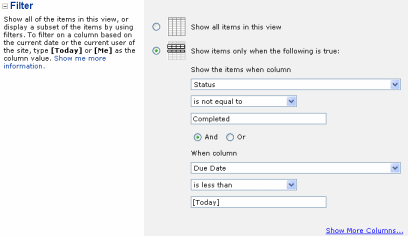 |
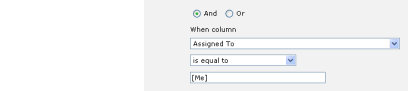
My Overdue Tasks
Add the following to the Overdue Tasks filter
Note – [Me] is a special marker that SharePoint understands as the current user. |
 |
Items added in Last 7 Days
It would be nice to be able to enter something like
- Created – is less than – [Today] – 7
in the filter, but alas its not quite that simple!
The workaround is to create a Calculated column and then filter on that column.
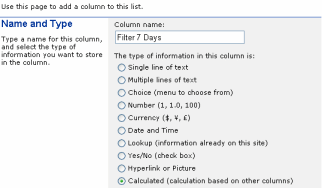
| Select Modify Settings and Columns, then Add a new columnGive the column name something like “Filter 7 Days” and select a Calculated column |
|
| Enter a suitable DescriptionIn the Formula box enter “=Created+7″Choose Date and Time format and Date OnlyClear Add to default view as we don’t want this field to appear on any of the views | 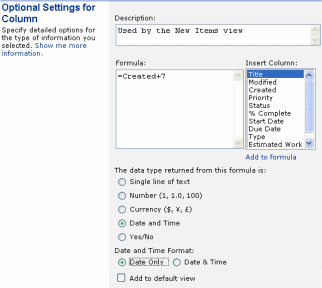 |
Create a new viewSetup a filter to show only :-
|
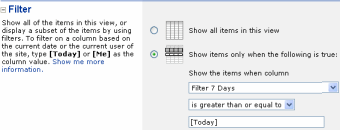 |
Items Due in the next 7 Days
| Select Modify Settings and Columns, then Add a new columnGive the column name something like “Filter Coming Due” and select a Calculated column | 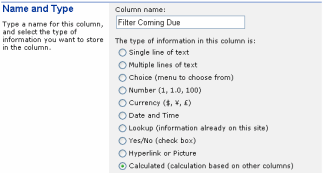 |
| Enter a suitable DescriptionIn the Formula box enter “=Due Date-7″Choose Date and Time format and Date OnlyClear Add to default view as we don’t want this field to appear on any of the views | 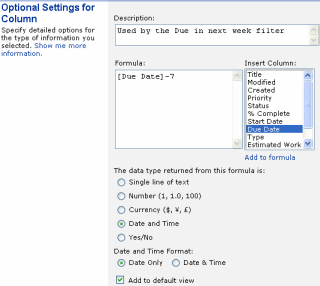 |
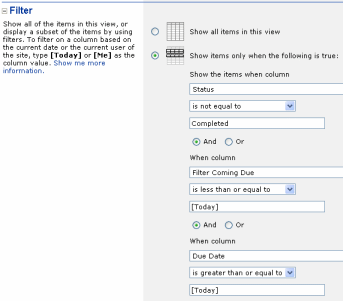
Create a new viewSetup a filter to show only :-
And
And
This will ensure that the view only displays Uncompleted items that are due in the next 7 Days but are not Overdue. |
 |
Items due in the current Calendar Month
If you need to filter for a Calendar Week/Month (rather than a rolling 7/30 day period) then this post details how
How To Use Filters in SharePoint to show items in the current Calendar Month
Tags: filters, Formula, SharePoint, View


Items added in last 7 days filter. This worked great as we wanted a rolling 30-day view as our site has been up for a few months.
Ha! Nice tip! I used it to show all tasks modified in the past 7 and 14 days – perfect for status reports.
It really works great. A good filter for displaying the items that expires within 15 days, etc
Hi,
Is it possible to have two filters [7 days / 30 days] in the same view,To give users to choose the filter they desire?
Thanks
Flyguy – if you add two conflicting filters to the same view it will not make logical sense.
E.g.
*Items over 7 days AND items over 30 days will only show items over 30 days.
*Items over 7 days OR items over 30 days will show items over 7 days.
What you can do is create two views and then let the user pick the appropriate view/filter they need. In WSS 3 you pick the view from a dropdown box towards the top right.
hi thanks for the nice tip!
i tried to use the filter in a ContentQuery-Webpart – but it doesn’t work for me 🙁
when i use it in doc-lib, it works like a charm.
Any Ideas ?
Tim – just a guess but if you are using WSS 3 / MOSS 2007 then check out this article
/2008/11/the-truth-about-using-today-in-filters/
and specifically the link at the bottom
http://www.u2u.info/Blogs/Patrick/Lists/Posts/Post.aspx?ID=1782
Using Today in a CAML Query – the offsetDays attribute
I am trying to use the filters to display a task whos status is Not completed OR not Cancelled. The filter does not seem to work. The second OR filter does not seem to work?
This is a hosted Sharpoint site.
Ian – I think you’ve got a little logic error there as your filter will always be true, in other words whatever status you set is always going to be either not completed or not cancelled.
If you’re not clear work it out on a bit of paper with the status down the side and the two parts of the filter across the top – this will make it clearer.
I don’t know what your requirements are, but maybe you need Not Completed AND Not Cancelled?
The [Me} view works very well wooohoo – tyvm!! Do you know how to filter a completed record + 30 days so it falls off the list after 30 days? We have date complete in our list – is there a way to add 30 days to that complete date so it will not show on that view?
Thank you in advance for the help 🙂
Oh I got it! – I created a calculated field for Complete Date + 30 days; filtered by [Me] and the calculated field is greater than or equal to [Today] and it works wooohoooooooooo – thank you!
no sorry that doesn’t work if the complete date does not have a date in it 🙁 any ideas please? 🙂
Hi Cheryl – I think either an extra condition to exclude empty completed dates or using an IF statement may work. I’ll have a play around later today and let you know what I’ve found.
[Me] filter does not work when the task is assigned to a group the user is a member of. Does anyone know how to make the task appear in the user’s to-do list when the task is not assigned to the user directly?
Thanks
Please let me know your approach, if you have to deliver the following
Sample Scenario
Say we have a content type with 2 columns a) News Article Type b) News Article Category Column a & b are choice types with a list of values. But what we need is that if News Article type is selected as say Internal then only certain List values must be displayed in the News Article Category dropdown list.
News Article Type : Internal
Dropdown list: Corporate; Finance; Employee; HR;
News Article Type : External
Dropdown list: Corporate; Industry; 2010 FIFA;
Question
if there a way to filter this using calculated field or you guys think there is a better way of doing this?
A Google search for “sharepoint filtered drop down” gives some promising results.
How do you add more filters to the view?
Deaven – at the bottom of the Filter section you will see “Show More columns”, every time you click this it will add space for an extra filter term.
Well Ryan its good tip.
Iam showing date difference in calculated column as a number by using jquery. Now i need this number to be considered in filtering options of that view.
Is there any way? Please do the needful.
Nazakath – I don’t think you will be able to do that because it happens too late in the process :-
A) User requests a page
B) SharePoint gets a list, applies a filter to it and gets a set of results.
C) Renders the results to HTML
D) The browser then displays the HTML and runs your jquery javascript.
So by the time you are running your javascript the filter has already been ran.
You may be able to hide from view certain rows of the table using jquery depending on your calculated field – but this is not ‘real’ filtering.
What calculation are you doing in jquery – can you do the same using Filters?
Hi Rayn thanks for comments..
My requirement something like this.. I need to filter the requests which are equl or greater then 45 days from the date of request created. i need to filter them and show them in a view.
Regards
Nazakath
Nazakath – thats an easy one (assuming you are using WSS 3 or MOSS 2007) see this post.
/2008/11/the-truth-about-using-today-in-filters/
So you would create a new view and set a filter of
Created
is greater or equal to
[Today] + 45
My boss refuses to use Access Query’s and Reports linked to SharePoint. He insists there is a way to do this “easy”.
In access I used SQL:
TRANSFORM Count(OPSLOG.ID) AS CountOfID
SELECT OPSLOG.[Record Type], Count(OPSLOG.ID) AS [Total Of ID]
FROM OPSLOG
WHERE (((DatePart(“w”,[start date/time]))=1) AND ((OPSLOG.[Record Type]) In (“Vandalism”))) OR (((DatePart(“w”,[start date/time]))=7) AND ((OPSLOG.[Record Type]) In (“Vandalism”)))
GROUP BY OPSLOG.[Record Type]
PIVOT Format([Start Date/Time],”yyyy mm”);
There are a few parts to this. Can I do a WHERE 1 AND 2 are true, OR 3 AND 4 are true?
Second, is there something simular to DatePart() so I can only get weekend, or Weekday (I showed Weekend SQL)? I don’t want to make a whole column dedicated to useing the TEXT(WEEKDAY([Start DAte/Time]), “DDD”) just so I can filter on the extra column (Close to date work around above).
Anyone?
Ryan,
In my case I have people assigned to a document so when a particular person logs he is only able to view the documents that are being assigned to him. I do that using the filter utility in a view.
what I want to do in addition to this is
when any one who is in the site administrator group logs in then they can view all the documents irrespective of whether they are assigned or not. Can I do this?
I’m trying to setup a filter based on a specific column, but that column is not showing up in the list of available columns to filter by. Any ideas?
Thanks
Is it possible to filter a document library using a field from a related list?
The site I manage is used to manage project documentation. We use a list to link to the related project documents in separate libraries (e.g. Charters library, Timelines library, Weekly Reports library, etc.)I want to filter out documents in each library when their status in the main list has been changed to “Completed.” (i.e. I need to filter on the list item’s status and not a column within the document library I want to filter)
I hope this makes sense; it is very difficult to explain.
Any assistance would be greatly appreciated.
@Pratik – I don’t think you can do this OOTB
@Tim – If the list is a Calendar type you can’t use Start/End dates in the filter as SharePoint gets into a bit of a muddle with recurring events – you can workaround using a calculated column = [Start Time] but this will only work for lists that DONT contain recurring events. If its another list/column type get in touch and will see what I can figure out.
@Cindi – I am not really sure what you are trying to do. If you send over some screenshots that may help me understand.
http://www.pentalogic.net/about-us/contact-us.aspx
It seems that if you set an alert to “All changes, and “Anything changes”, you get an alert even if someone views an item in a list for instance. Anyway to filter out just the view of an item?
@Greg – not sure whats going on here, I’ve never heard of an alert for just viewing an item before! Are you using a basic list or is it a document library? Do you have any custom code or workflow on the list that actually modifies something in the list when its viewed?
I am trying to use the method “Items Due in the next 7 Days” to accomplish the next requirement: “Show a view with employees having their birthday in the next 30 days”
What I have is a list with name and birthday columns (date format is MM/dd/yyyy), like Ana, 10/20/1980.
I have created a calculated column which has the month and day of the birthday and the current year, called BirthdayThisYear: 10/20/2009.
I have also created a calculated column named UpcomingBirthday:
[BirthdayThisYear]-30 (DateTime column, Date only)
Then I have created a view with the following filter:
UpcomingBirthday is less than or equal to [Today]
AND
BirthdayThisYear is greater that or equal to [Today]
There are three employees with a birthday coming in the next 30 years, but nothing shows in the view I have created.
Am I missing something?
@Laura
I have created a calculated column which has the month and day of the birthday and the current year, called BirthdayThisYear: 10/20/2009.
How have you done this – have you used the infamous Today trick or are you entering the Year manually?
Try removing the filter and showing your two calculated fields in the view to ensure they are being calculated correctly.
Also – your method isn’t going to work correctly for people who’s birthdays are in the first so days of the year. Say bob’s birthday is 5th Jan, next birthday is 5th Jan 2010 but your lit shows 5th Jan 2009 so they won’t appear in the list until the 1st Jan when you change the year to 2010.
Have you seen this Birthday reminder web part?
Finally – now that Reminder supports recurring events you could use that to send out an email when peoples birthdays are due in 30 days
I am trying to filter a list for it to show the items that have been worked in a Month To Date timeframe, using the [Today]-30 or similar will provide a defined day qty but I am looking for calendar days defined by the month of a Worked Date field.
Any ideas?
@Ed – Can I clarify your question :-
Do you want to show only this month to date, so today its the 13th Nov so you would include items from the 10th Nov, but not the 30th Oct or the 15th Nov.
Have I got this right?
Ryan,
Thanks for your quick reaction.
Correct, I only want to show month to date info, nothing from Oct, nor future cases (however my list should not see any future date as the Date Worked).
Thanks in advance for your help!
Ed.
Hi Ed – it was a bit more complex than expected but this may help
/2009/11/howto-filter-items-current-calendar-month-view-sharepoint/
This is really useful! I’d be nice if Microsoft had this on their site! 🙂
Hi Ryan,
Is it possible to create special markers, on the lines of [Today]/[Me], programmatically. Something like [LastUserLoginTime] or [CurrentSiteValuePath]. Would be great if you throw some light on this.
Thanks,
Vijay
I have the same challenge as Flyguy. I want to make a view showing an item in a view, if either
* items are due within 7 days
or
* Items are due due within 30 days AND the value of column ‘How long does it take’ is greater than 10 hours.
@Jacob – sorry, missed your question first time round.
The expression you would need for this is (for a task list you would want to add AND NOT Completed.)
( Due Date > [Today]) AND
( Due Date 10 AND Due Date < [Today]+30) )
Although you can express this in CAML (the query language underlying SharePoint) it is just too complex a formula to setup in the View filter UI (do a search for the CamlQueryBuilder tool)
You've got a few options I think :-
* You could setup a DataView webpart and filter using XSLT
* You MAY be able to save the list as a template, modify the definition manually with the complex formula and then create a new list from it
(Both of these are way way beyond what I can describe here though!)
Maybe the easiest way though is to put two views on one page – one showing Due in 7 days if takes less than 10 hours , the other just below it showing Due in 30 days if takes over 10 hours?
This might make a good question for “Stump the panel” http://www.endusersharepoint.com/2010/01/04/stump-the-panel-sharepoint-qa-forum-now-live/
Hi all,
This question may be simple, but I’m stumped. I am trying to filter a standard view of a calendar list by the start date column, but it is not appearing in the “show the items when column…” drop down. Any ideas??
Thanks!
@Anna. SharePoint doesn’t allow you to filter on Start/End times in Calendar lists because of the way Recurring events work – its a long standing frustration!
You can fool SharePoint into letting you do this but if you use recurring events then you will get into all sorts of trouble.
http://weblogs.asp.net/gunnarpeipman/archive/2007/10/09/filtering-sharepoint-calendar-by-start-time.aspx
So, I’m trying to apply a filter to show me items that have not changed for more than 30 days (so these are older items that no one has touched). I’d be using the Modified date column. My brain is just not being logical.
Would that filter be [Today]+30?
@Mary – Assuming you are using SharePoint 2007 then you would want a filter of
Modified Date “is less than” [Today]-30
aka Modified date is older than 30 days ago.
Hi Ryan, Any clue how I can filter an issues list in sharepoint 2010 based on assigned to being empty?
can’t find any examples of what to put when I want to compare any field to nothing.
@gpnash – you can just do a filter for “Assigned To” “is equal to” and then leave the value textbox empty
Just wondering if it is possible to have more than one filter in a SharePoint view, i.e. is it possible to have an initial filter than a secondary filter?
@Brandan – sure it is. If you have a look at the first example its filtering on [Status] != [Completed] AND [Due Date] < [Today].
If you need more filters there is a "Add more" link.
Thanks Ryan.
My question relates to customised SharePoint views. Currently my SharePoint view has one yellow filter that runs along the top of the view where I am able to sort items in ascending or descending order and so forth.
I am wondering that within SharePoint if it is possible to apply a secondary filter i.e. I would have the top yellow filter than another one below it, ideally this would change depending on the document type selected, different metadata for different document types.
Cheers,
Brendan.
Hi Ryan,
I’ve read through some of the postings here; your responses are very helpful. Nice job.
I would like to know if there’s a way to implement the following conceptual filter:
where myFunction(value) = true
Ideally myFunction() would be .NET code, and “value” could be anything. A string would be fine. The function would always return true or false.
I understand (and would accept) any performance implications due to the complexity of myFunction.
Can this be done?
Thank you in advance,
-kevin-
Hi Kevin,
I am not aware of any way to do that directly, but the workaround if you haven’t already thought of it is to pre-calculated a value and store it in a column and then filter against that.
For example you could have some .net code running as part of a workflow or event receiver that when a record is added or modified will run the myFunction(value) and store the true/false result in a “Show Record” field.
Hello!
Is it possible to make a filter that only display the items that createt in the current year?
For Example: i have items created 2009 and 2010 in my list.
Now i only want to display the items that created in 2010.
In 2011 in want to display only the items from 2011 and hide the 2010,2009 items and so on…
Cheers!
Philipp
This post shows you how to do the current calendar month and at the bottom there are examples for current year.
/2009/11/howto-filter-items-current-calendar-month-view-sharepoint/
You can adapt this for the previous year (use YEAR([Date])-1)
Thank you, works perfect!!!
[…] With reference too http://msdn.microsoft.com/en-us/library/bb862071.aspx /2008/10/advanced-sharepoint-view-and-filters/ […]
Nice post Ryan !…
Heres a post to describe how to filter the list view web parts with JavaScript
http://rahul-vartak.blogspot.com/2010/08/sharepoint-2007-filtering-list-view-web.html
Hi
I want to show items which are after 2 hours to present time in a list view. Please let me know as this includes working against TIME too where the TODAY cannot be used for TIME calculations.
Or let me know how to get the current time through any calculated column.
Regards,
Kiran
@Kiran – you can’t use Today in a calculated column
Sorry – I don’t know any way to do what you want as there is no Time function in SharePoint that you can use in filters.
I’m interested in a different case. Is there a way to filter objects (specifically calendar items) based on the group membership of the Created By field?
EG we have a master Sharepoint site with many sub-sites within it. Each sub-site has groups of users, and also has it’s own calendar for when and where people are traveling or otherwise unavailable. I just added some time I’m spending out of the office to three different calendars on the different sub-sites where I’m a member. It would seem more productive to have a master calendar, and a filtered view for each sub-site showing only those people relevant to the sub-site, and I was wondering whether it is possible, and how to accomplish such a thing.
The information here is helpful, however I am interested in filtering calendar events that are upcoming in the next 3 days including today. Is there a way to do that?
Thank you Ryan for your interesting post and your helpful answers.
Does anyone know how to put some intelligence into some SharePoint date fields that when somone enters a date before today, they get an error message. I was told that this can be done through List Forms Extensions, bu I have looked at their user doc and can’t figure it out. Please help.
I need to put some intelligence into some SharePoint date fields that when someone enters a date before today, they get an error message. I was told that this can be done through List Forms Extensionns, but I have looked at their user doc and can’t figure it out.
Hi,
great blog!
I have a question regarding filtering techniques: is it possible to configure a view based on metadata? I can’t find a way to do this…
Hello,
is there a way to always have the filter look for items ‘created’ (or other column) yesterday? e.g., [today]-1 or something?
i have to look at a list every day and count items added yesterday – a formula to do this would be very helpful!
thanks!
Hi Justin – its exactly that (assuming you’re using SharePoint 2007 or above)
Where (Some Date) > [Today]-1
/2008/11/the-truth-about-using-today-in-filters/
Thanks Ryan,
That worked “[Today]-1”
saved me some time!
Hi Ryan, this was an excellent article and I’ve used many of your techniques. I need to track daily tasks by time. As soon as they go past due I need to contact the assigned resource to get an update. [TODAY] only shows tasks that are at least 1 day past due. In Excel I would use Now(), but that doesn’t work in SharePoint. Have you run across a way to show tasks in a view that are past due even by a 1 minute? Could I possibly use JavaScript?
Any guidance you can provide would be greatly appreciated as it would be a huge time saver.
Regards,
Steve
Hi Steven – I haven’t tried this myself but this looks promising.
http://nickgrattan.wordpress.com/2008/04/24/filtering-views-by-time-and-date/
I would be interested to know how you get on!
Hi Ryan, Wondering if you can help.
I need a filter to exclude some records.
We have a work team og 15-20 people.
I’m trying to generate a View where “AssignedTo = [Me]” – works OK but then excludes records where the “Completed Date” is greater than, say, 7 days.
This way end up with a view showing me all my tasks plus what I’ve completed in the last 7 days.
Any thoughts please?
Andrew
Hi Andrew
You should be able to combine these with an AND operation.
In between your filters you will see radio buttons for AND or OR – it defaults to OR but for your case you will want to choose AND.
Hi, i wonder if you can hide the latest document in a view and only show the top 5 documents after the latest.
How do you filter a calendar that has multiple calendars in view? I have the default calendar plus a few extra calendars overlayed and I want to filter everything by location (location is equal to X) but when I filter it, it only filters information put on the default calendar and not the calendars I had overlayed in the view.
I came across this post when I was trying to find a way to filter my list to show items 4 hours after they were created. This was a follow up list where we needed to look at accounts again after four hours. I ended up getting it to work on my SharePoint MOSS site.
I added a calculated column to the list that I named Four Hour Delay. The column is calculated as =[Created]+.166 (four hours being approximately .166 of a day). Then I filter my list on Four Hour Delay < [Today].
Nice post Ryan.
Can I use query string paramter to filter the list somehow? If yes, please tell me how.
This should help – http://www.vbduncans.com/blog/2008/12/30/UseTheQueryStringToFilterAnySharePointListView.aspx
Thanks Ryan.
But I was looking for a way to specify the querystring parameter name in the filter fields. Any idea? Is it possible?
@Manish – I am not sure what you mean, can you elaborate please?
I mean can we retrieve a value of a query string parameter and filter the list based on those parameter using out of box functionalities?
Say in your first example,
I would like to do something like “Status” is equal to ““.
Ryan, I have 2 columns, one labeled Due Date, and the other – Completed Date. I am trying to create a filter that filters only items where the Completed Date is greater than the Due Date, thus giving me a filter for completed items that are late. Any help you can give would be appreciated.
Greg
@Greg – this should help “How To setup a SharePoint view filter to compare 2 list fields”
/2010/06/how-to-setup-sharepoint-view-filter-to-compare-2-list-fields/
Hi. I hope you can help. I am looking to create a view that displays the last entry for a particular account record. So for example.
Entry 1 on my list – Acct 123, Date 1/1/2011.
Entry 2 on my list – Acct 123, Date 4/1/2011.
I want to create a View where only Entry 2 will display because the date is greater.
Any clue how to accomplish this?
@Nikki – you can setup a view, set it to sort by your date field in descending order and then set Item Limit = 1 and this will return just the newest record.
Sorry Ryan…I think i missed a little info.
Say I had Entry 3 on the list – Acct 456, Date 5/1/2011. So i want the View to have…
Acct 123, Date 4/1/2011.
Acct 456, Date 5/1/2011.
@Nikki – I am not sure I understand you?
Sorry. I apologize for not being clear. So i have a list of accounts. Some of the accounts repeat. I want a view
that will display only the latest date for each account.
For example.
Entry 1 on my list – Acct 123, Date 1/1/2011.
Entry 2 on my list – Acct 123, Date 4/1/2011.
Entry 3 on my list – Acct 456, Date 5/1/2011.
I want the view to return :
Acct 123, Date 4/1/2011.
Acct 456, Date 5/1/2011.
The view should exclude Entry 1 because Acct 123 is a duplicate of Entry 2 but Entry 2 is the latest. Entry 3 should be on the view because its the only entry for Acct 456. Hopefully, that’s more clear. I want to show the latest date for all accounts and all unique accounts without duplicates.
@Nikki – Ahh, gotcha! I remember seeing a similar post (from you?) on one of the SharePoint forums. I am afraid I don’t know how you cold do this without some coding, sorry!
Thanks anyway Ryan. I think I posted one more place today…but that was it. Still stomped on this one. May try a different approach. Thanks for thinking about it. Will continue to search.
Ryan,
Thank you for all the great info. I am trying to filter my items to show 30+days old. Meaning after created date I need it to display the items that have passed the 30 day mark. Created column called “30 Days” =created+30 then Filter to show 30 days-is less than-[Today] it shows all current items. If I use greater than it shows all items plus future items. I tried, Created-is greater than or equal to-[Today]+30 with different results but not accurate ones. Ideas??
This article was written originally for 2003 and in 2007 and onwards there is an easier way (See where it says Edit in article).
Basically you don’t need to muck around with the calc column, you can do it all in the filter, so
Filter = “Created” “Is Less Than or Equal To” “[Today]+30”
/2008/11/the-truth-about-using-today-in-filters/
Still no luck. When I use that filter then nothing displays at all. I am trying to build KPI’s for the Service Desk Trouble Tickets and this one is supposed to show “only” tickets that have been opened 30+ days. I have 4 that are over 30days and only 1 shows when I filter “30 Days” -less than-[today]. I have flipped, flopped and tried to figure it out and still come up short.
I was trying to filter with multiple calculated fields. From my understanding that is not going to work. I believe the issue is now resolved……
Hi Ryan,
Solid article, big thanks. However, I’m hoping you could help me with following issue in MOSS 2007.
Got 2 lists – “AllContacts” and “Companies”.
In List: “Companies”, there is a column: InternalEmployees.
I would like to have this as a hyperlink which when clicked, will filter through AllContact list and display only contacts that are employed by that Company (value can be taken form column Company in list AllContacts)
I hope it is clear enough and possible.
Ryan,
Is it possible to have anyone enter in a due date, but only a select few can alter the due date once it has been entered in a list?
Is there any workaround for SPS 2003 to use the =Created+7? Thanks.
Adding to my above post, whenever I try =Created+7 or even =[Created]+7 I get the following error:
One or more column references are not allowed, because the columns are defined as a data type that is not supported in formulas.
Created does not even show up in the “Insert Column” box.
@Airin – the workaround for SharePoint 2003 is in this very post! See “Items added in Last 7 Days”
Are you putting the [Column]+7 in the correct place (a calculated column set as a Date type) or are you putting it in a filter?
Thanks for the reply. Here is my exact steps.
1. click “modify settings and columns”
2. Under “Columns” section, I click “Add a new column”
3. Type in “7 day filter” as column name and select “Calculated (calculation based on other columns)” option
4. Now in the formula box I can try =Created+7 or
=[Created]+7 (both no spaces). Now the insert column box to the right doesn’t show “Created” as an option where it does above in your post.
5. Below I select “Date and Time” and “Date Only”
6. Either formula I try I get the “One or more column references are not allowed, because the columns are defined as a data type that is not supported in formulas.”
In my “All document” view, the “created” column is displayed so I’m not sure why I can’t use it. Am I missing something?
Thanks again.
This is very helpful! I have a slightly different question, though. Is there a way to do nested logic in a filter? i.e. I need to select items where (status=x AND date>=today) OR (status=x AND date=blank). I can get either the first condition or the second, but not both together.
@Sallie.
I think you’ve got two options here – 1) Convert this to a Data View Web Part (DVWP) using SharePoint Designer which allows you to enter complex expressions like that 2) Use a Calculated column to do the calculation and generate “TRUE” or “FALSE” then do the filter on that true/false value – search “calculated column cheat sheet” for inspiration.
Or… hang for a few days as you’ve given me inspiration for a nice little blog post…
I’m fairly new to SP, so haven’t yet played much with Designer. However, calculated columns did the trick. (Yes, plural – it’s a bit ugly as I also have another iteration where I need to select status=y with the same conditions.)
I’ll look forward to the post and hope to make this a bit more elegant in the future. Thanks!
Hello, I need to create an indicator (KPI) that shows the percentage of documents in a library in SharePoint 2007 with a date of revision (custom column) has expired (less than the current date). The problem is that the possibilities to filter the indicator does not allow using [Today]. How can I fix it? Thank you very much for the help. regards
@Oscar – Looks like its not possible
http://social.msdn.microsoft.com/Forums/en-US/sharepointbi/thread/1e25d81d-5e2a-47d9-8b2f-90807f4cb935/
Thank you very much for your reply Ryan. I had already read the post that you recommend. However, I do not need to filter a KPI list, but to create an indicator based on all elements of a document library. I need to show the percentage of items in that library that have a date type property, less than the current day ([Today]). But the opportunities available to calculate the indicator does not include the use of the [Today].
The following example attempts to show what I need:
Library A
Name Review date
—- ———–
doc1 01/12/2011
doc2 01/03/2013
doc3 01/04/2013
doc4 01/05/2013
KPI List
Indicator Value
————– —–
Pending Review 25%
I don’t want [Today]. Every example I found is using [Today]. I want the format for a time! Please.
@Conax – I am afraid that SharePoint doesn’t have any Now() type function so you’re out of luck!
Thanks for the reply, Ryan.
I am not looking for the Now() type function.
What I have been longing to know is where you have placed a [Today], I actually want to specify a date with time in that box. I tried things like 25/05/2012 8:40:00, and 25/05/2012T8:40:00Z…etc but SharePoint always rejects it saying the format is invalid…
Is it actually possible to specify a date with time in the box? If I specify just a date then it accepts it. But I would like to be able to find items created after a certain time on certain date…
Much appreciated if you know how to do this.
@Conax – gotcha. Its not easy as you have to break out SharePoint Designer to hack the view and this will be undone if anyone edits it after but this may help – http://nickgrattan.wordpress.com/2008/04/24/filtering-views-by-time-and-date/
Calculating number of day’s item is open
I have an Issue list that I need to have calculate the number of days an item is open for. These are the columns I have now:
1. Date Created: Automatically enters the date the item was created.
2. Days Open: Calculated column with the following formula.
=IF(OR([Issue Status]=”In Progress”,[Issue Status]=”Not Started”,[Issue Status]=”Dispute – In Progress”),IF([Date Created]<"TODAY()",DaysOpen,Days2Close),Days2Close)
3. DaysOpen: Calculated column with the following formula.
=SUM(TODAY()-[Date Created])
4. Days2Close: Calculated column with the following formula.
=DATEDIF([Date Created],[Date Closed],"d")
All of the formulas appear to work at first, but the number of days open does not increase unless you edit and save the item (Just like your blog post states). Once the item is closed, the number of days the item was open for is correct. What can I do to make this work?
@Jim – the ‘today trick’ which you must have used to put TODAY() in a calculated column doesn’t work and never has despite it being endlessly repeated by some bloggers. See /2008/11/truth-about-using-today-in-calculated-columns/
Thanks Ryan. I forgotten about this post last year and was reminded just now by the auto emails generated by the last two replies in the post. So I thought I should come and thank you for your help. 🙂
Ryan,
Thanks for the quick reply. With your help (this post) I had figured out that using TODAY() does not work. My questions then is; “Is there a workaround?” I read the post about using javascript to update the number of days until the task due date (http://blog.pathtosharepoint.com/2008/08/25/a-countdown-for-tasks-lists/), but cannot figure out how to get apply that method to my list.
The only workaround I was able to use is the SharePoint designer workflow. Use ‘when an item is create’ ‘pause 24H/1D’ update something in the SP Item. This way your [Today] will work. You just going to have to deal with the growing version history.
Ryan,
Do you know if you’re able to create a view in a Document Library based of a specific value held in a selection choice field? I’ve tried creating a view based off the text stored in the choice field but have no luck. The choice field is getting set from a workflow I created. I’m wondering if the actual value of the choice field is a GUID behind the scenes?
Thanks,
Chris
Never mind – I figured out how to find the numeric value assigned by switching to Datasheet view. Thanks.
This is perfect. After searching through some many posts about the [TODAY] calculated column trick that doesn’t work, finally found a real solution. Thank you.
I’m trying to figure out how to filter based on a person’s branch ID.
What I’d like to be able to do is create a Branch View where columns Branch is equal to the user’s branch.
ex: Jim is in Branch 12. When he views this list, he will see all current list items that are associated with Branch 12 as his default view.
Branch is an indexed value in this list.
I can see that the individual would be able to set this up, but I’d like to set it as everyone’s default view on this list.
Any thoughts? Pointers?
So Jim would see Branch 12, but Bob would see Branch 7 – is that right? And would it matter if Bob could change something and see Jim’s branch? Finally how do you store the Person to BranchID mappings?
Is there any way to create nested filters?
What I need is to have multiple values all occur (essentially need an AND operator for them), OR if a couple other fields & values exist (but more than one).
It seems hard to believe that Sharepoint wouldn’t provide a way to filter based on multiple conditions. But I’m somewhat new to Sharepoint and struggling. Can anyone advise how exactly to modify a view in Sharepoint that will show only if:
Field A is not equal to 1, OR
Field A is not equal to 2, OR
(
Field B is equal to 8, AND
Field C is equal to 92
)
Did this make sense to anyone?
@Sebastian. The way to do complex filters such as these is using SharePoint Designer – if thats not possible/desirable you can do the condition in a calculated column then the the filter in the view.
E.g. calculated column called “SHOW RECORD” which is yes/no and formula of something like “=IF( OR(FieldA 1, OR (FieldA 2, AND(FieldB = 8, FieldC=92)),TRUE,FALSE)” then filter in the view for SHOW RECORD – IS EQUAL TO – TRUE
(Haven’t checked this so maybe typos – but will get you on the right track).